Friday, January 21, 2011

RIP DVDs WITH VLC MEDIA PLAYER


HOW TO RIP DVDs WITH VLC MEDIA PLAYER


VLC Media Player Users would know that VLC is one of the best multimedia players for it can play almost any video type.

To add credits to VLC Player, there are other features that make it more likeable.

One such feature is the DVD Rip feature which works fine with Windows XP, Windows Vista and Windows 7

How To Create a DVD Rip:

Place the Video DVD that you want to rip in the DVDdrive

Open VLC Media Player. Click on Media


Click Convert/Save

In the “Open Media” window that is open, click on the Tab with the name “Disc”

Make sure that DVD is selected and choose the “Disc Device” which is your DVD drive and then click on “Convert/Save”


In the next window that opens up, under “Destination”, click on “Browse” and name the file with the desired list of extensions you see under file types and click on “Save”
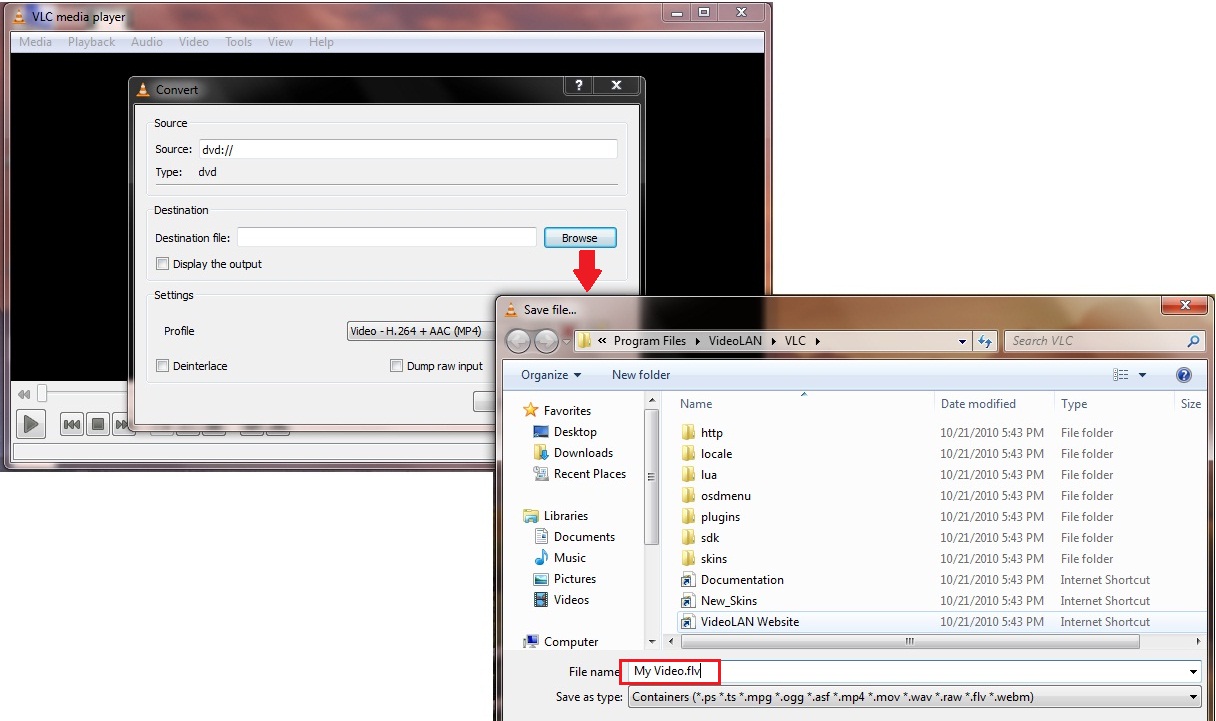


In the next window, click on “Start”


Now the Video plays and the DVD Ripping happens simultaneously. Do not pause or stop the video until the entire video is complete.

Once the Video ends, close the VLC Media Player and check if the output file plays fine, which sure will!!

Thursday, January 20, 2011

Setup A Video Wallpaper Using VLC Media Player

How To Setup A Video Wallpaper Using VLC Media Player


Most of you might have been wondering how to set up a video or animated wallpaper for your desktop. With the Dreamscene feature removed from Windows 7, there is still a way to set video wallpapers.

You can use the same procedure to set a video wallpaper on Windows XP, Windows Vista and Winodws 7

To have a Video wallpaper, you need to have the VLC Media Player. If you don’t have VLC Media Player, click here to download.

TO SET VIDEO WALLPAPER:
Open the video that you would like to set as wallpaper using the VLC Media Player.

Click on “Tools” and Go to “Preferences”

Click on “Video” on the left pane and under “Output” Select Directx Video Output and then click on “Save”


Now right click on the video that is playing and click on “Video” and then “Directx Wallpaper”

Now you can close or minimize the video player.

Bingo!! You have your Video Wallpaper!!

Wednesday, January 19, 2011

HOW TO CONFIGURE WINDOWS MEDIA CENTER TO OPEN A LIBRARY WHEN LAUNCHED

HOW TO CONFIGURE WINDOWS MEDIA CENTER 
TO OPEN MEDIA LIBRARY WHEN LAUNCHED


Windows Media Center is a digital video recorder and media player developed by Microsoft. It is an application that allows users to view and record live television, as well as organizes and plays music and videos. The application is included in various versions of Windows XP Media Center Edition, Windows Vista Home Premium and Ultimate and all editions of Windows 7 except for Starter and Home Basic editions.

When Windows Media Center opens up it opens with a default animation page and then the user must manually select the music, video or the live TV option etc.


There are ways that allow the user to open the Windows Media Center directly with a library

Here’s how to do that

Right click on the Windows Media Center icon on the desktop

Go to “Properties”


In the target you would find the value “ %windir%\ehome\ehshell.exe ”

Leave a space after %windir%\ehome\ehshell.exe ” and type in the value
/homepage:MusicBrowsePage.xml /PushStartPage:True and then click on "Apply"  and then "OK"

Note: This would open up Music Library by default when you open the Windows Media Center

If you would want to open Pictures Library by default, change the value to /homepage:PhotosBrowsePage.xml /PushStartPage:True

If you would want to open Videos Library by default, change the value to /homepage:VideosBrowsePage.xml /PushStartPage:True

"Labels" in Gmail


What makes Gmail's labels better than folders is that you can "put" any message in any number of folders. An email can belong to the "most urgent" messages as well as to a particular project at work, for example. It can carry the "needs follow-up" and "family" labels at the same time, and you will find it under both labels.


Gmail does not let you put messages in custom folders. What looks like a limitation is an advantage, however. Gmail has a flexible alternative to folders: labels. Each label operates like a folder. You can "open" the label and see all the messages "in" it. So far, so good.

Creating labels in Gmail


* Select Settings from the top Gmail navigation bar.
* Go to Labels.
* Type the desired name for the label under Create a new label:
* Click Create.

Tuesday, January 18, 2011

HOW TO DISABLE AERO PEEK FEATURE IN WINDOWS 7

HOW TO DISABLE AERO PEEK FEATURE IN WINDOWS 7


Aero Peek feature is a feature of Windows 7 that helps the computer user to have a quick peek on the applications and gadgets on the desktop or have a peek at the applications in the taskbar.

This article is meant only for Windows 7 and is not applicable to Windows XP.

For instance, if you are working on some application while a download is happening on the other window, you can just move the mouse pointer on that application for a second and you will see the download status. While you are done, just slide the mouse away and you will get back to the window you were working on.

Some of you might not like this feature because when the mouse moves accidentally, it changes the screen.

To disable Aero Peek:

1. Right click on “Computer”

2. Go to “Properties”


3. On the Left Pane click on “Advanced System Settings”

4. Click on “Settings” under “Performance

5. In the Window that appears look for “Enable Aero Peek” and uncheck the Check Box. And then click on “Apply” and then “OK”


The feature can be enabled again by making a check mark again.

Saturday, December 11, 2010

Enable Keyboard Shortcuts to Refresh All Tabs/Pages in Opera browser

Enable Keyboard Shortcuts to Refresh All Tabs/Pages in Opera browser


In Opera browser, we've always wondered about how to reload all tabs opened up. This feature exists in Firefox and can be simply used by right-clicking and choosing refresh all from the drop down.

Well, it's simple. Though, not directly configured but we can easily enable this through keyboard shortcuts.

 "F5" is the default shortcut to "Reload". We'll change this to "Reload all pages" to reload all the tabs by pressing "F5" on the keyboard.

Here's how:


Wednesday, December 1, 2010

LinkWithin

Related Posts Plugin for WordPress, Blogger...